The Book Inventory Software I Use to Track My Home Library


If your book collection has reached the point where your memory can no longer be trusted, it may be time to introduce a book inventory software. Because I don’t know about you, but I’ve bought the same book more than once because I didn’t remember I already had it. Even got a book signed twice!
Today I’m sharing how I use the Libib app to scan my books with my phone and then get that list over to my Notion reading journal.
But you don’t have to export anything if you don’t want. Libib can be your whole book inventory software. Can you imagine having to manually type every title into a spreadsheet? Just the thought of that makes me anxious.
If you’re ready to obsess over your home library and be the most organized you’ve been with your reading life, then keep on reading.
This post contains affiliate links. That means we receive a small commission at no cost to you from any purchases you make through these links.
Why I Needed Book Inventory Software
I started taking book inventory seriously when I literally kept buying duplicates of books, especially when attending signings and events. You have to buy things on the fly and I had no access to my bookshelves to make an informed decision. But a digital book inventory gives you a backup brain.
For romance readers, this gets especially useful because so many of us collect by author, series, subgenre, format, and sometimes cover and special edition. You may own a mass market paperback, an ebook, an audiobook, a signed copy, and a special edition of the same book. That is a collection. But it does need a system.
Do You Need to Buy a Home Library Scanner?
I know you’re probably tempted to live your best librarian life and get a physical library scanner. Believe me, I get the temptation. But there’s really no need when your phone can do the job just the same. For a personal home library, you don’t need more than that. And this coming from someone who has scanned over 1200 books into Libib. Yes, the collection is extensive.
What Is the Libib App?
Libib is a library cataloging tool that lets you create collections and add books and other media to them. Think of it kind of like GoodReads or Storygraph but with a bigger focus on your book inventory. You can use it through the website but there is also an app, which is the part I use for scanning books. That is the main reason I like using it. And I didn’t want something that was app only.
I should also mention I’m using the FREE version of Libib for this, and I personally don’t use it for anything else. However, you do have the ability of tracking the status (read, unread, DNF), writing your review and rating of the books as well. So it can act as your reading tracker as well as book inventory if you want to keep everything in one place. And there are additional perks for upgrading, but I’ll be honest, I’ve never looked into them because I can do everything I need for free.
Libib also lets you catalog board games, movies, music and video games.
How to Use Libib to Scan Your Books
Here comes the fun part of using your book inventory software! You can do 1 & 2 via the website or the app, whichever works best for you.
- First, obviously, open a Libib account and download the app.
- Once you’re all settled you will create a collection. I have some tips below on how I use my collections.
- Once the collection exists, open it on your Libib app.
- Now for the actual scanning. Tap the plus sign at the bottom and choose the scan barcode option.
- Point it towards the barcode of the book you want to scan. It’s quick and you’ll get a notification of the book that it found.
- If it pulls the wrong book, delete the item and scan again.
- Otherwise tap “scan another” and repeat.
Most standard finished copies scan without much drama, which is why this works so well when you have a lot of books to add at once. The easiest way to do this is in batches. Pull a stack of books, scan them, move them to a “done” pile, and keep going.

Once the books have been scanned, I also have a custom stamp that shows they are part of my home library. If you want your own, this is the home library stamp I got from Pickled Stamps.
My Best Tip: Create Separate Collections Before You Scan
This is the part that makes the biggest difference for me since I’m exporting the data, but I think it can work even if you want to keep everything inside of Libib: I create separate Libib collections for anything I already know I will want to track in my main system. Almost like a tag.
For example, I create separate collections for signed books, ARCs, mass market paperbacks, hardcovers, and trade paperbacks. If I already know I want those books categorized a certain way in Notion, it is much easier to import them into the right category later. If I scan a batch into a “Signed Books” collection, I already know what those books are when I export them.
I use collections kind of like tags, but Libib does have tags as well. You can create those ahead of time or on the go. But for example you can have tags for genres, authors, tropes, formats, signed or unsigned, read or unread, recommended by a friend, thrift store purchase, anything you want!
What to Do with ARCs or Books That Do Not Scan
Most finished copies with a barcode will scan easily and usually also accurately. I haven’t had problems there. But ARCs are a bit more annoying. If an ARC has an ISBN on the back, you can manually enter that into the Libib scanner, there’s an option for that when you tap the plus sign. It’s a little extra step, but usually doesn’t fail me. Now that is not an ISBN for the ARC, which is why I have the collection for ARCs.
If Libib still doesn’t find the book with the information you have, then you can manually add the book later. Go to the Libib website, click Add Items on the left sidebar, then choose Manual Entry. That lets you add all the information about the book manually, down to the cover.
Older books, special editions, foreign editions, indie books, and ARCs may all need a little extra attention. That is normal.
Export Your Book Inventory from Libib
If you are like me and use something else to track your inventory, it’s now time to export it. After you scan your books into Libib, go to the website to export the data. In your settings, look for the option to export your collection data as a CSV. Select the collection you want, export it, and download the file.
A CSV is basically a spreadsheet file. You can open it in Excel or Google Sheets, or import it into a database tool like Notion or Airtable.
Would you like to save this?
Import Your Book Inventory into Notion, Airtable, or a Spreadsheet
Once you have the CSV, you may need to clean it up before importing it somewhere else. I usually rename columns, remove columns I don’t need, and generally just make sure the data matches the structure of my Notion reading tracker.
This is also why creating separate collections helps. If I already scanned signed books, ARCs, hardcovers, or paperbacks into their own Libib collections, I can classify those batches much faster when I import them.
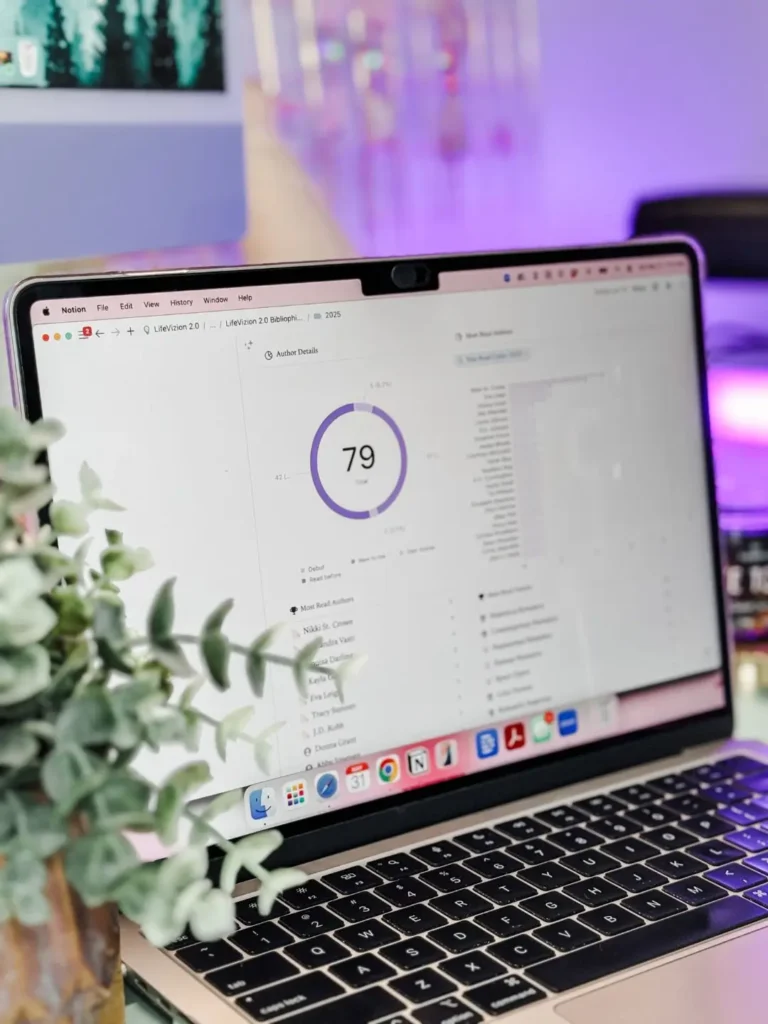
I personally import the data into my Notion reading tracker. I have a full walkthrough of my system, including where you can buy the template if you want to use it for yourself.
You do not have to use Notion, though. Airtable, Excel, Google Sheets, or Libib itself works just as good. The best book inventory software is the one you will actually update, not the one that looks impressive for three days and then gets abandoned.
How Often Should You Update Your Book Inventory?
Listen, in a perfect world you would add every book into your inventory as soon as it comes into your possession. If you are that person, respect. You won’t have to worry about doing another big inventory batch ever again.
However, if you are anything like me, books pile up. You may have a book mail cart, or a pile of books on the floor in front of your bookshelf. I have done both. If that is your reality, then make that pile your system. Keep all new arrivals in one place (cart, basket, tote, shelf, corner of the floor). When that spot gets out of control, create a new Libib collection for that batch and scan everything in one sitting. If there are signed and different formats, I end up creating a few collections for that batch. Now, if you are keeping your inventory in Libib and there’s no export, then you don’t need new collections. Just go into the respective collection you want.
This way the mess has a purpose and you don’t get confused about which ones have been scanned or not.
What Should You Track in Your Book Inventory?
You don’t need to track everything. Believe me. Start with the information that solves your actual problem. If you keep buying duplicates, track title, author, format, and edition. If you forget what you have not read, track read/unread status. If you can never find anything on your shelves, track shelf location in the notes.
It is very easy to build a beautiful database full of information you never look at again. Ask me how I know.
Tips for Making Book Inventory Less Overwhelming
Start small. Do one shelf, one cart, one genre, one author, or one book mail pile. Do not begin with the entire home library unless you enjoy suffering and finding yourself in the middle of piles of books and never seeing the end in sight.
Separate scanning from decision making. I usually go through with a critical eye when making the original piles to scan. Once I’ve done that and have the books to unhaul separate from the keep piles then I start scanning.
Keep a manual entry pile for books that refuse to scan. If you try to manually do it on the spot, it reduces your speed to get through everything else.
Update your inventory in batches if you know you will not do it one book at a time. So figure out what will be your messy update tracking system. A stack, a bag, a cart.
Final Thoughts
A book inventory software sounds like something only extremely organized people use, I get it, but it becomes useful the moment your collection outgrows your memory. You do not need a complicated setup, and you don’t need to buy a separate home library scanner unless you just like the vibes.
For me, the biggest benefit is peace of mind. I can access my book inventory from anywhere via my phone and suddenly my collection is perfectly controlled.
So you can get started today. One stack, one cart, one shelf. Scan what you can and build your system slowly. Your future bookstore shopping self will thank you.
Now if you are ready to put those books away back on the shelves, I’ve got some bookshelf organization ideas that may help with that too.
Pin It for Later