

How to Organize Your Kindle Library: A System That Works

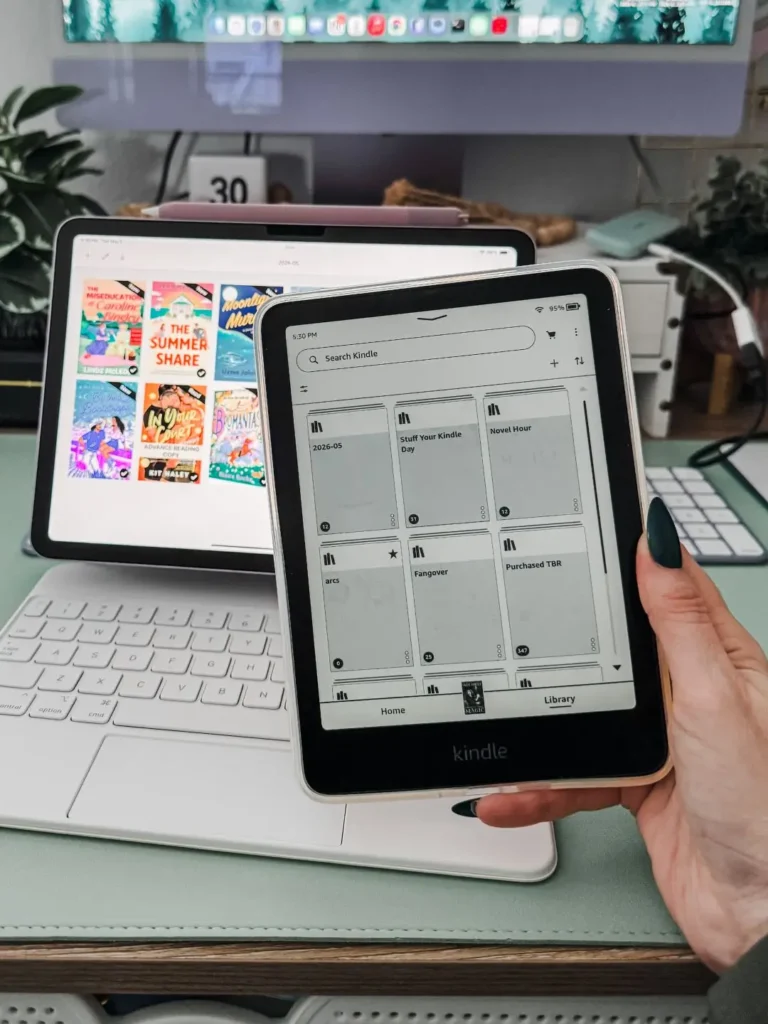
I’ve been using a Kindle device for over a decade, and as an avid reader and a serial downloader of freebies, I have thousands of ebooks on my device. As someone who reads over 100 books per year, one thing that has kept my reading in some order so I don’t lose books into the pit of despair never to be found again is organizing my kindle into collections. I’m going to walk you through exactly how I create them, manage them across devices, and my thought process on which collections are actually worth making.
The easiest way to organize your Kindle library is by using Kindle Collections. On your Kindle, Kindle app, or Amazon Content Library, create collections by genre, trope, reading status, reading month, or reading project. Then add books to those collections so you can filter your library instead of endlessly scrolling through every ebook you own.
Why Kindle Collections Are the Only System That Works
Prior to using collections, and sometimes also when I slack and not file books properly now, I would forget about ever downloading a book or even wanting to read it. It hits the Kindle library, and then it just slides farther down and I can’t search for it, because I don’t remember it. But with collections you can create a system that works for you that helps those books not to fall through the cracks.
As a mood reader and a TBR planner, this is an absolute must. And if you can never decide what to read next, a good system for your Kindle library really helps. I know that sounds like a hype promise, but it’s true.
So let’s jump straight into how to do it, and then I’ll give you my tips on how to create your system.
How to Create Collections on Your Kindle Device
You’re probably here because you have a Kindle device. I have a Kindle Paperwhite, I’ve been a Paperwhite user almost exclusively for over a decade, although I did love the Kindle Voyage RIP. This isn’t my favorite way to manage collections because the device itself has some lag. But it’s great for on the go maintenance.
Setting up your library view:
- On your Kindle home screen, tap the up/down arrow to switch between views, you’ll see All, Collections, Books, and Audiobooks. Switch to Collections to see only your collections.
- To hide Audiobooks from your default view, tap the three dots at the top → Settings → Home and Library → Library tab
- Under Audiobooks, change from Always Show to Show Only When Filtered, they’ll disappear until you specifically filter for them
- Do the same for Collections on this setting if you prefer: set to Only in Collections View so collections only appear when you’re in Collections view not on your main library grid.
Turning on Group by Series:
- In that same Library tab, turn on Group Series. This automatically groups series books together. Note: this only works for books purchased through Amazon. ARC copies or docs won’t group automatically. But this is a great feature so you don’t have to manually create collections for series.
Creating a new collection:
- Switch to Collections view using the up/down arrow
- Tap the plus sign to create a new collection, OR tap the three dots at the top and click Create a Collection this works from any view
- Type your collection name and tap Create
Add books to a collection:
- Long press on a book that you want to add to a collection and then click the Add to/remove from collection. And then select the collection you need to add it. You can select multiple at the same time.
- This is also the process for removing books from a collection.
Filtering read vs unread:
- Inside any collection or the general kindle library view, tap the toggle/filter icon and select Unread. This hides books you’ve already marked as read. You don’t need to create separate Read/Unread collections because the Kindle handles this for you.
Favoriting collections:
- Press and hold any collection → select Mark as Favorite. This pins it to the top for easy access. Works from any device.
Watch: how to create a collection, add a book, and delete a book on your Kindle device (60 seconds)
How to Create Collections on the Kindle App
I always have all my Kindle devices synced and usually don’t have any problems. So collections and books show up everywhere. I tend to use my iPad mini sometimes at night and especially for a handsfree reading experience. If you want to know how I set that up, I have some tips on using an iPad mini as an ereader. But the Kindle App on an iPad has less lag than using the Kindle itself. So if you have this alternative, it’s great. The phone will work the same but it’s just a smaller screen.
Creating a new collection:
- In your Kindle app library, tap Sort to change your view to Collections
- Tap the plus sign to create a new collection
- Type your collection name and tap Create
- The app will immediately prompt you to add books so you can tap any books you want to include the first time, then tap Done
Finding books to add using search:
- Use the search function to find specific titles quickly, especially useful if you have a large library
Adding a single book to an existing collection:
Would you like to save this?
- From Collections view, tap Sort and switch back to Grid or List view so you can see all your books
- Press and hold on any book cover and a menu will appear
- Tap Add to Collection
- Select the collection, or select multiple collections if needed
- Tap Done
A note on phone vs iPad: Functionality is identical on phone and iPad. The difference is purely screen size. I prefer the iPad because it gives you more room to work with, which makes the process faster when you’re organizing a large backlog.
How to Organize Kindle Collections on Amazon’s Website
This is my preferred method to organize my kindle library, manage collections and add books, especially when working with a large backlog. The bulk editing tools here will make using the iPad or Kindle feel slow by comparison.
Getting to your collections:
- Go to your Amazon account and open your Content Library
- Click the View All Content dropdown and select Collections
- From here you can create a new collection, or edit, rename, and delete existing ones
Creating a new collection:
- Click Create New Collection
- Name your collection and confirm. It’s created instantly and ready to add books to
Adding books to a collection:
- Click the View Collections dropdown and select Books (or All Content if you want access to docs which is where your ARCs and files live)
- Scroll through your library or search and check the boxes next to every book you want to add to a particular collection.
- Once selected, scroll back to the top and click Add to Collections
- Choose one collection or check multiple collections at the same time, then click Make Changes
Removing books from a collection:
- Inside a collection, check the boxes next to the books you want to remove
- Click Remove from Collection at the top. This is the fastest method for bulk removal
- Alternatively, click More Actions on any individual book and select Add or Remove from Collection
Using search for bulk organizing:
- From your Books view, use the search bar at the top to find books by author, title, or series
- Select all results at once using Select All and then add the entire group to a collection in one click
- This is the fastest way to build author collections or series collections from a large library. For example, searching “J.R. Ward” pulls every book, doc, and audiobook in your account with her name on it
Bonus: Each book displays how many collections it belongs to. Click that indicator to see exactly which collections it’s in. This is useful for auditing your organization at a glance. But also gives you a delete button next to each collection, so it’s a quick remove as well.
How I Actually Organize My Kindle Library
Over the years I’ve played around with a lot of different collection systems, so here are the ones I keep coming back to, and the ones I’ve abandoned but they served a purpose at the time.
- Genre or trope collections. If you’re a mood reader, this is especially helpful. When you want a fated mates romance, you go to that collection, filter for unread, and you have your options right there. My tip: add books to these collections immediately from your phone the moment you download them. You will never go back and do it later. I also use a naming convention that keeps similar collections grouped together like genre-paranormal-romance, trope-fated-mates. That way they sort alphabetically and stay organized even when you have a lot of them. Also, if there’s a collection you use constantly, either favorite it or start the name with 00 so it sorts to the top. For collections that are lower priority but you still want to keep, start the name with ZZ and they’ll sink to the bottom out of the way when sorting.
- Monthly TBR collections. I used to name mine TBR-01 through TBR-12 and create the whole year at once. No shame if you don’t finish. These are hopefuls, not deadlines. At the end of the year I delete the monthly collections and move anything unread into a “past due” archive collection so nothing disappears.
- ARC collections. If you’re an ARC reader, this is the easiest way to track your commitments without building a spreadsheet. I create all twelve months at the start of the year. Mine are labeled 2026-01, 2026-02, and so on. Same end of year process: delete the collections, move the stragglers to past due. Honestly, I don’t do separate TBR collections anymore because most of what I read is either ARCs or completely impulse reads. One monthly system handles both things for me.
- Reading challenge and project collections. This one’s fun. If you’re doing our Romanceopoly reading challenge, a dedicated collection makes it easy to keep your possible books in one place. But it works for any project. For example, a vampire romance deep dive, a series you keep meaning to continue, a book club readalong. This will keep the projects contained, intentional, deletable when you’re done if you want to.
- Freebie collections. This is a real problem for me, and probably for you too. Freebies pile up fast and then vanish into the library never to be seen again. I have a Stuff Your Kindle Day collection and one for Purchased TBR (because yes, the books I actually spent money on deserve their own category separate from the freebies so I actually read them). Having them grouped means I actually read some of them instead of just accumulating them.
- Samples collection. I download a lot of free samples when I’m browsing. Some I dismiss immediately. Others are a yes or a maybe and for those, I keep the sample and drop it into a Books to Buy collection. It’s a low-commitment way to earmark something for a future purchase without forgetting it existed.
What I don’t do: author collections. With thousands of books, maintaining a collection for every author would be a massive pain, and the search function on the Amazon website does that job faster anyway. I also don’t do a separate read/unread collection because the filter on the device handles that automatically.
Whatever system you pick, keep it small enough that you’ll actually use it. I delete collections when they go empty. I can always recreate them.
Organize Kindle Library FAQ
Can I delete a collection without losing my books?
Yes. Deleting a collection removes the collection, not the books in it. Your books stay in your library, they just won’t be grouped in that collection anymore. This is why I delete empty or outdated collections regularly without worrying about it.
Do Kindle collections sync across devices?
Yes, as long as your device is connected to WiFi. One thing to know: the Kindle device itself can be a little slow to sync. If your collections aren’t showing up on your Kindle after making changes on the app or website, tap the sync button and give it a moment.
How do I manage Kindle collections on the Amazon website?
Go to your Amazon account and open your Content Library. This is where you’ll find your full books and docs library with search, sort, and bulk editing tools. It’s the fastest method for managing collections, especially if you’re organizing a large backlog. I covered the full step-by-step process in the website section above.
Can I organize Kindle Unlimited books into collections?
You can, but I don’t recommend it. Kindle Unlimited already has its own built-in filter, and since you can only have a limited number of books out at a time, a separate KU collection adds organizational work without adding much value. Use the filter instead.
What is the fastest way to organize hundreds of Kindle books?
The Amazon website, without question. Use the search function to pull books by author, series, or title and add them to collections in bulk. One thing worth knowing: when you’re in Collections view on the website, you’ll automatically see an orphaned books category. Those are the books that don’t belong to any collection yet. That’s your starting point for getting everything sorted.
How many collections can you have on a Kindle?
Technically there’s no meaningful limit. That said, I’d keep it to a manageable number. If a collection isn’t actively helping you find and read books, it’s just clutter. If something can be handled with a filter or a search, don’t make a collection for it. The goal is a system you’ll actually use.
What’s the difference between a Kindle Collection and an Amazon List?
A Kindle Collection organizes books already in your Kindle library, almost like folders for your ebooks. An Amazon List is more like a wishlist for books you may want to buy, borrow, or remember later. So: use Collections to organize what you own, and Lists to save what you might want later.
Final Thoughts
Getting your Kindle library under control is one of those things that sounds like a project but really just takes an afternoon (or a few, if you have a lot of books). Once your collections are set up and your naming system is in place, maintaining it becomes second nature. You add a book, you drop it into the right collection, done.
If you’re the kind of reader who likes having a system, the next logical step is tracking what you actually read. I put together a full breakdown of the eight ways I’m tracking my reading this year. That includes digital, physical, and everything in between.
Pin it for later


I would like to oraganize my kindle books by subject in my library. Example: Recipe Books, Psychology Books (my profession), Personal Reading, Art, etc.
Do you know of there’s a setting or way to find out if a book is already in a list? I see a book I’d like to read and select add to list and I don’t see anywhere if it tells me it’s already in one and I believe I’ve wasted a lot of time adding books over and over again.
Sadly no that I know of Cathy. It’s a manual check.
Sadly under my Books menu in the store I appear to have no View menu to be able to create or use collections.
I do see a thingy that says Beta, but it isn’t interactive and I can’t turn Beta mode off 🙁
I have created collections, but when I want to assign a book, the only choice I have is the “Read” collection. I have verified that the other collections exist.
I had all my books nicely sorted into collections, until I got a new device. It then either his the collection, didn’t fully sync, or lost it completely.
So now I have some collections twice, or thrice!
Oh no that’s terrible! Are you able to fix that from the website versus the device? Might be easier.